Access the hub
To access the hub, you will need to navigate to the URL provided by your hub administrator. This URL will look something like https://<your-hub>.2i2c.cloud.
Logging into the hub depends on the authentication method. The most common methods are:
CILogon: You will be redirected to the CILogon portal to log in with your institutional account/Google account/Microsoft account, etc.
GitHub: You will be redirected to GitHub to log in with your GitHub account.
If you are having trouble logging in, please contact your hub administrator.
Start a new server
Depending on the configuration of your hub, a new server may start automatically when you log in that drops you into JupyterLab/RStudio.
For other hubs, you will be presented with a Server Options page where you can select the memory and CPU resources for your server. You can also select the software environment that you would like to use.
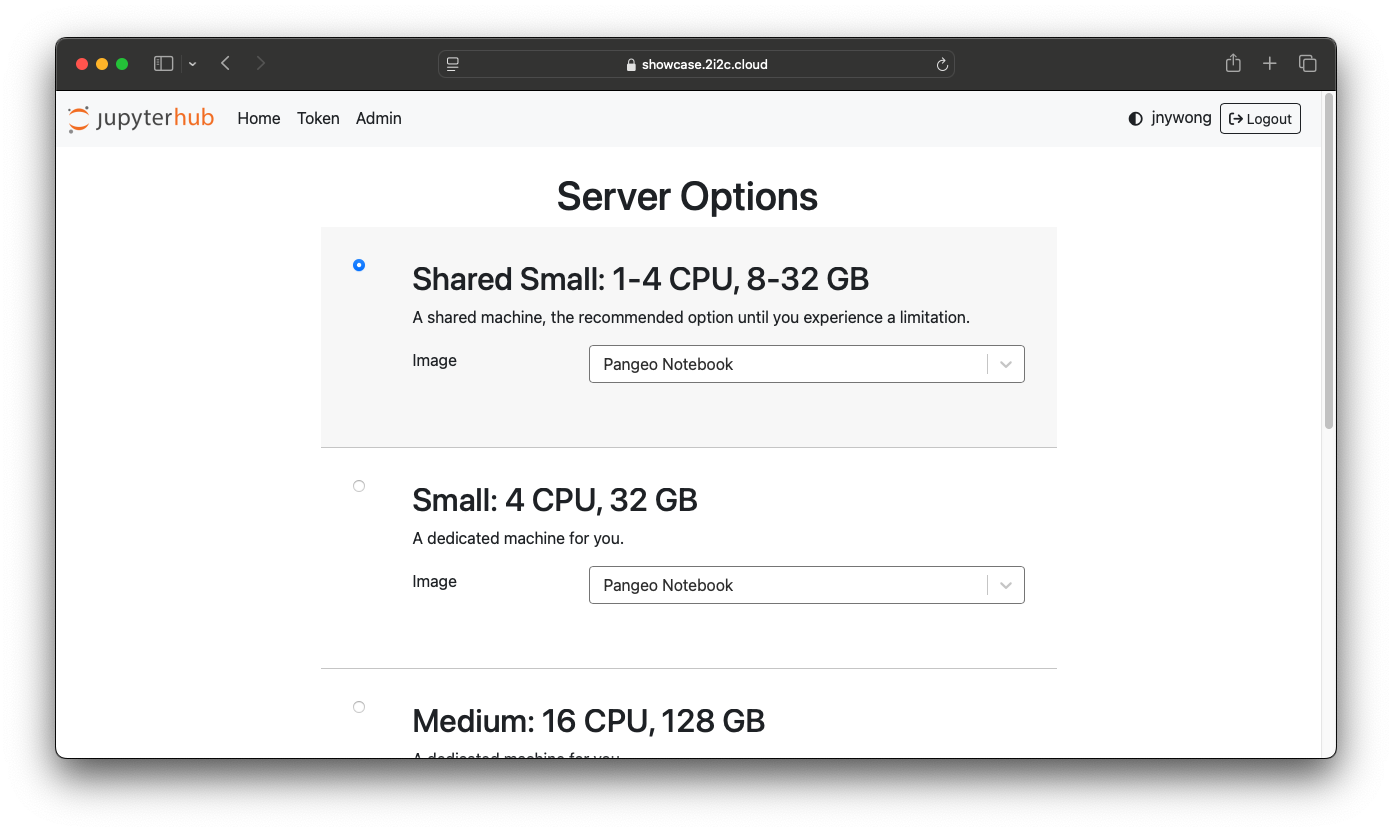
It is important to use cloud resources responsibly to maximize efficiency and minimize carbon emissions. Selecting a larger server incurs a larger financial cost, as well as an environmental cost!
Best practices for using resources responsibly include
shutting your server as soon as you are finished with your work
selecting the server option with the minimum number of CPU cores and RAM needed to carry out your work
running code efficiently and developing sustainable research software where possible, e.g. test your program first before scaling to larger datasets.
Environment and interface
There are three main interfaces available on the 2i2c JupyterHubs: JupyterLab, Jupyter Notebook, and RStudio.
You may switch between these user interfaces by navigating to the appropriate URL
https://<your-hub>.2i2c.cloud/user/<your-username>/<your-interface>where you can replace <your-interface> with one of the following (where available in your software environment):
JupyterLab:
/labJupyter Notebook:
/treeRStudio:
/rstudio
JupyterLab
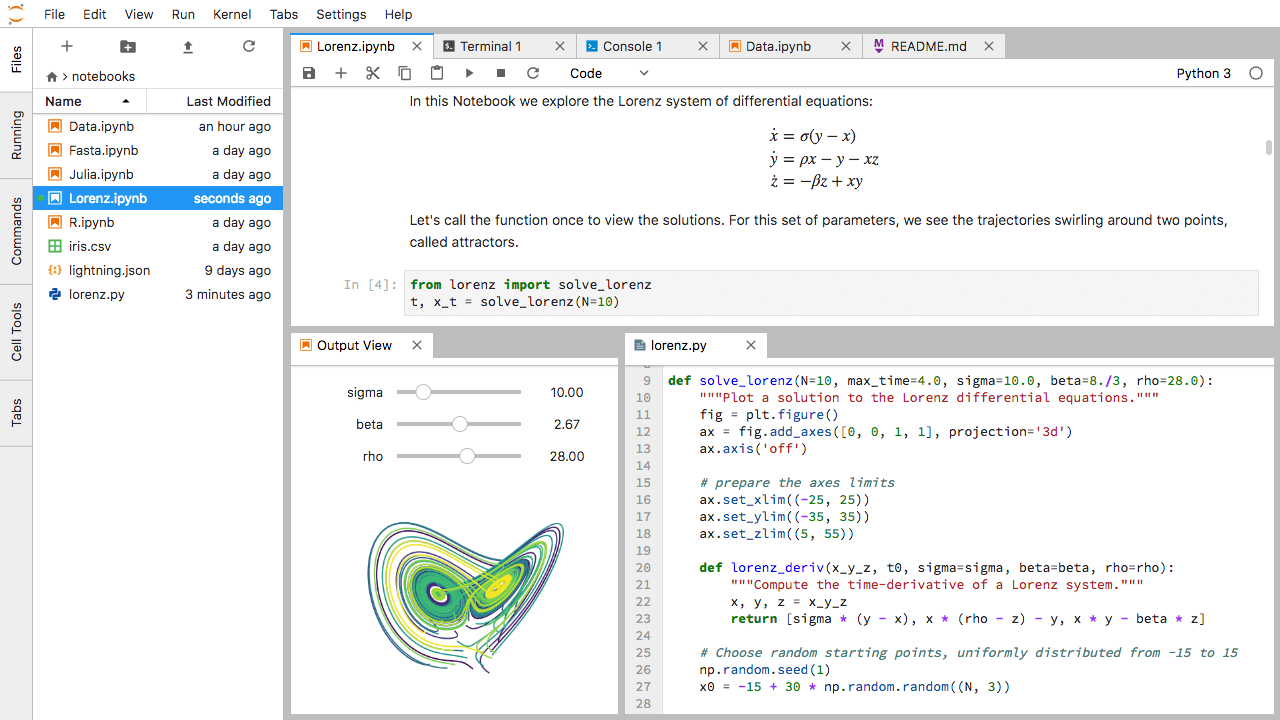
JupyterLab is a modern version of the classic Jupyter notebook from the Jupyter project. This typically includes the classic notebook, a file explorer, an integrated terminal, as well as powerful extensions.
Jupyter Notebook (Classic)
The original single-document interface for creating Jupyter Notebooks.
RStudio
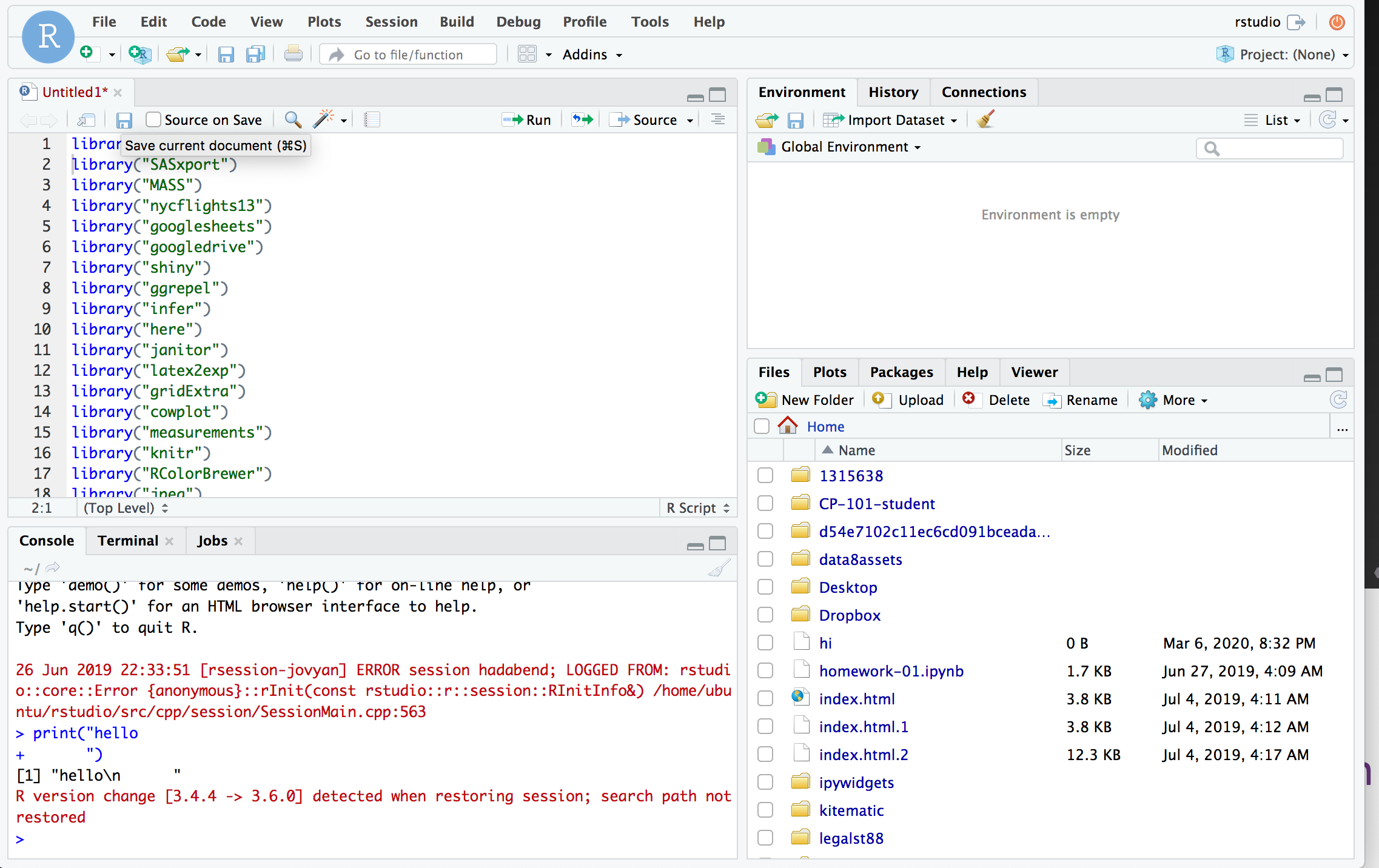
RStudio is an IDE for R, created by the RStudio company.
Software environment
You can temporarily install packages in your environment that will last the duration of your user session. They will get wiped out when your user server is stopped, to ensure that you always start from the ‘default’ environment provided by your hub administrator.
You can add %pip install <list-of-packages> or
%conda install <list-of-packages> in the first cell of any notebook
you distribute if you need to install any necessary extra packages. For R,
you can use install.packages("package-name") as you normally would.
Shutting down your server
When you are finished with your work, it is important to shut down your server to save resources and reduce costs.
Shut down from JupyterLab
To shut down your server in JupyterLab, click on the File menu, then Hub Control Panel, and then Stop My Server.
Shut down from Jupyter Notebook
To shut down your server in Jupyter Notebook, click on the File menu, then Hub Control Panel, and then Stop My Server.
Shut down from RStudio
To shut down your server in RStudio, navigate to
https://<your-hub>.2i2c.cloud/hub/hometo access the Hub Control Panel and then click on the Stop My Server button.