To start a server on the Hub, go to the hub’s home page, then click on the Start My server button.
Depending on how your hub was set up, after clicking the button, you will be either:
directed to “the spawn page”, where logs and a progress bar will indicate that a server will be created. This server will pull a software environment, i.e. a docker image, that was pre-configured by the hub admins.
presented first with a list of “Server Options” that will allow you to configure this server before it will be spawned for you.
The first case is straightforward requires no further user input. The rest of this page describes the second case in more detail.
The Server Options
The Server Options page that will allow you to configure the server that will be created and started for you.
Profiles and Options
You can choose from different pre-configured “profiles” and for each profile you can choose from different pre-configured “options”.
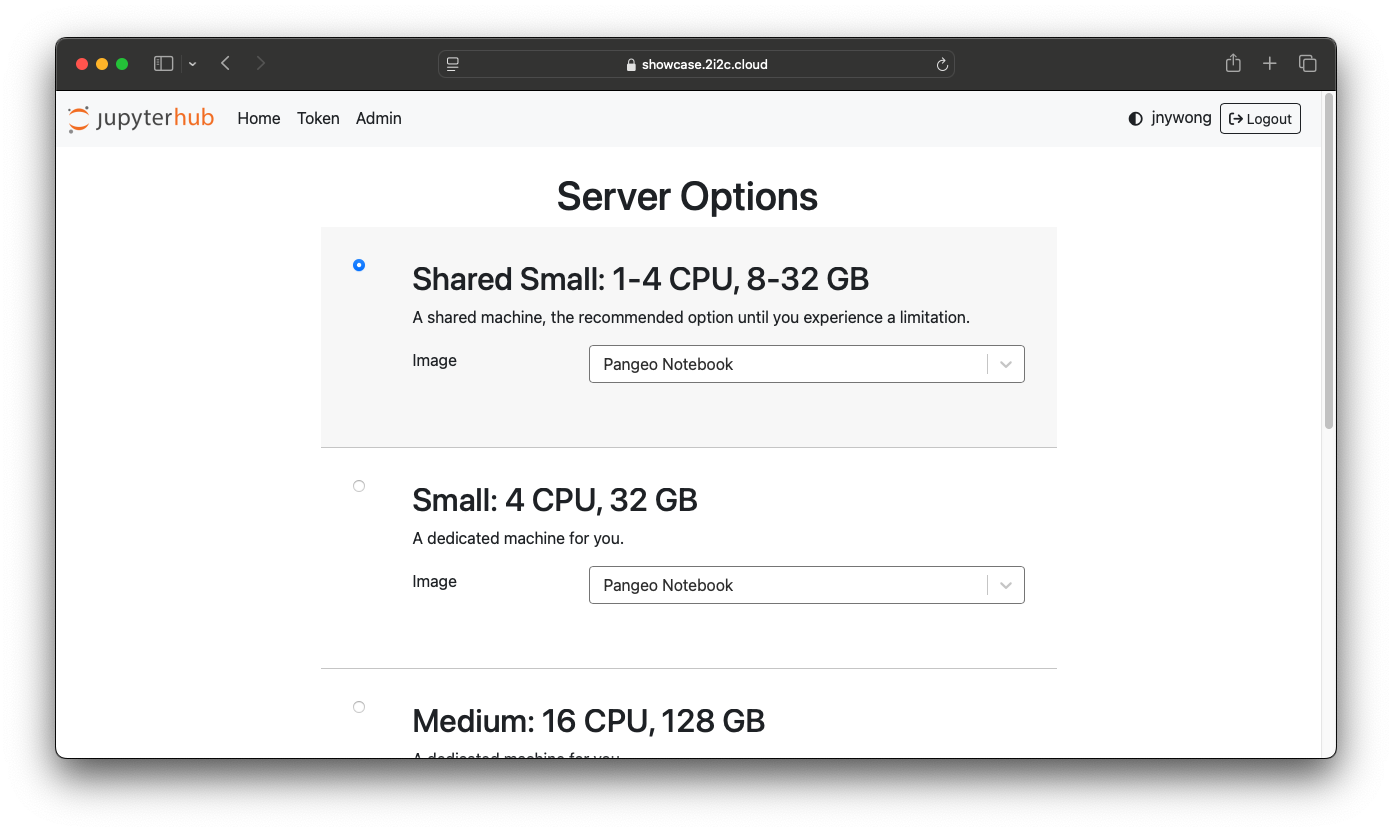
The image above represents a Server Options page example, where you can choose:
an image profile that defines the software environment and is curated by your hub administrator, with options such as Python, R, or even Bring your own image
for each profile, you can select from a list of pre-configured options for the
Node share, which represents the hardware resources such as CPU and RAM available on the server.
The “Bring your own image” option
If this feature is enabled for your hub, then the user can freely specify any image hosted on a public container registry.
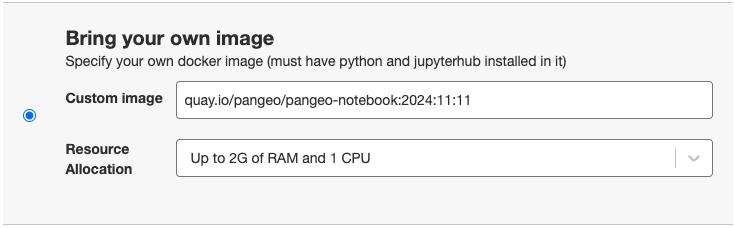
The general format for specifying an image is
OWNER/IMAGE_NAME:TAGFor example, if a user wanted to pull the Jupyter PyTorch notebook container, then they would enter quay.io/jupyter/pytorch-notebook:x86_64-pytorch-2.2.0 into the Custom image field.
We recommend always explicitly specifying a version number in the TAG field rather than using the generic latest tag. Providing the version number in the tag is useful for producing informative server logs for debugging purposes and allows you to check whether the correct version of the image is loaded into the hub by running the following command in a terminal in your hub
jovyan@user:~$ echo $JUPYTER_IMAGEThe “Dynamic Image Building” option
This allows users to dynamically build an environment image for their Jupyter server, similar to mybinder.org.
See Build your own environment from the hub for more information.