You’ll often want to distribute content (such as notebooks, scripts, sample data, etc) to your users so they can do exercises, follow along with a lecture, or use as a starting point for their own work. This content is often constantly updated as time goes on, and needs to not overwrite your student’s work if you make an adjustment to content that has already been touched by the student.
nbgitpuller is the tool we recommend for this. The workflow goes something like this:
Ensure that nbgitpuller is installed in your user environment
The default environment for 2i2c JupyterHubs has nbgitpuller pre-installed.
However, if you define a custom environment for your hub’s users, you’ll need to ensure that nbgitpuller is installed in order for users to use it!
Put your content in a public GitHub repository
Create a repository on GitHub and start putting your content there. This is the source of the content that will be distributed to your users. You can update it as often as you wish. While instructors will need to know how github works, your users will never have to interact with git directly.
Generate an nbgitpuller link
Generate an nbgitpuller link. This generates a clickable link that contains within it the following pieces of information:
The URL to your hub. Upon clicking the link, users will be redirected to this hub, and content will be pulled into their home directory there.
The URL of the git repository where the content lives.
The branch in the git repository where the content lives. The default specified there is
master, although newer GitHub repositories usemainas the default. You can find yours on the Github page of your content repositoryThe default interface to open when users click this link. The default is the classic notebook, but many other apps are available.
A file to open when the link is clicked. When left empty, a directory listing with the content of the repository will be shown.
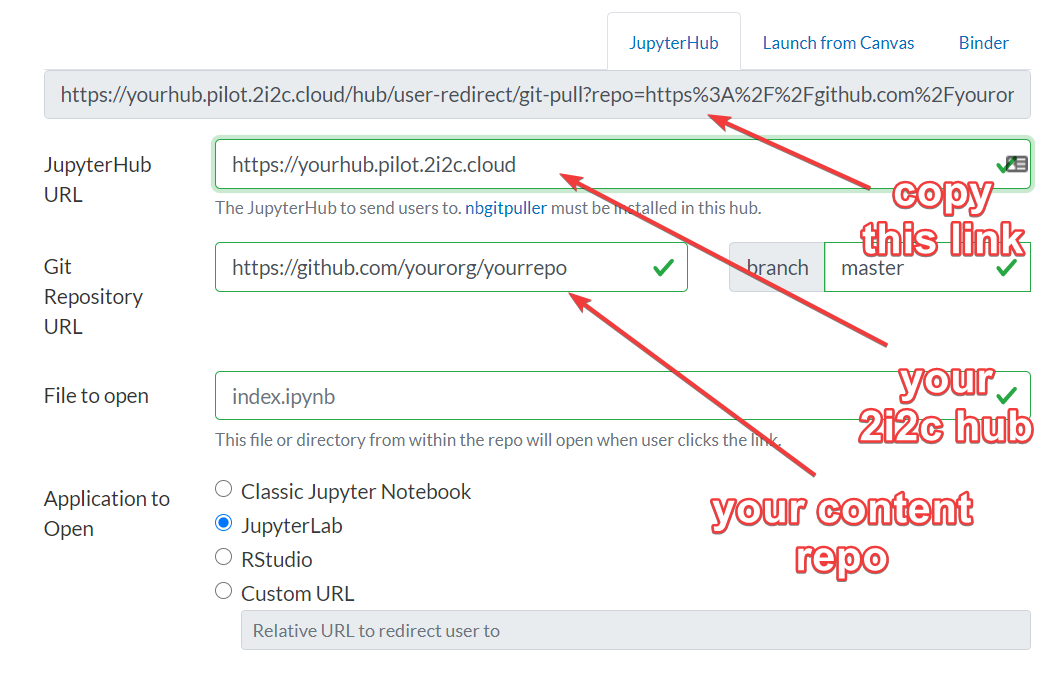
The nbgitpuller.link user interface, along with
some important fields highlighted.
Once you’ve filled these out, you can copy the link from the textbox above the form.
Distribute your nbgitpuller link
Distribute the link you have generated to your users. Upon clicking the link, they will be:
Redirected to your hub, and asked to log in if they have not already
The first time the link is clicked, your content repository will be pulled into their home directory!
If they had already clicked the link before, any new changes in your content repository will be pulled in. Any changes the user has made will be automatically merged with changes in the content repository, in such a way that the user’s changes are never overwritten. All merge conflicts will also be automatically resolved, so users don’t have to interact with git.
If you have picked a specific file to be displayed, the user will be redirected to that file, open in the application you picked. If not, the directory listing of local copy of the content repository will be shown in the application you selected.